How to Turn Off Find My iPhone: A Complete Step-by-Step Guide
Many iPhone users look for clear instructions on how to turn off find my iphone, especially when preparing their device for repair, sale, or troubleshooting. Understanding this process is important because the Find My feature is tied directly to Apple’s security system and Activation Lock. Whether you’re upgrading to a new iPhone or handing your device to someone else, knowing the correct method ensures your data remains safe and your device functions properly.
Why You May Need to Disable Find My iPhone
There are several situations where turning off this feature becomes necessary. Apple designed Find My to protect your device, but it must be disabled before specific actions such as repairs, factory resets, and ownership transfers. This is why many people search online to understand the proper steps for how to turn off find my iphone without causing any issues with their Apple ID or iCloud settings.
You may also need to turn it off if you’re troubleshooting iCloud syncing issues or preparing your device for trade-in programs. These programs often require the device to be removed from your Apple ID to prevent Activation Lock from blocking setup by the next user.
How to Turn Off Find My iPhone from Your Device Settings
The most common method is turning off the feature directly from your iPhone’s settings. This method is quick and convenient, and it works on all modern iPhone models.
Step-by-Step Instructions
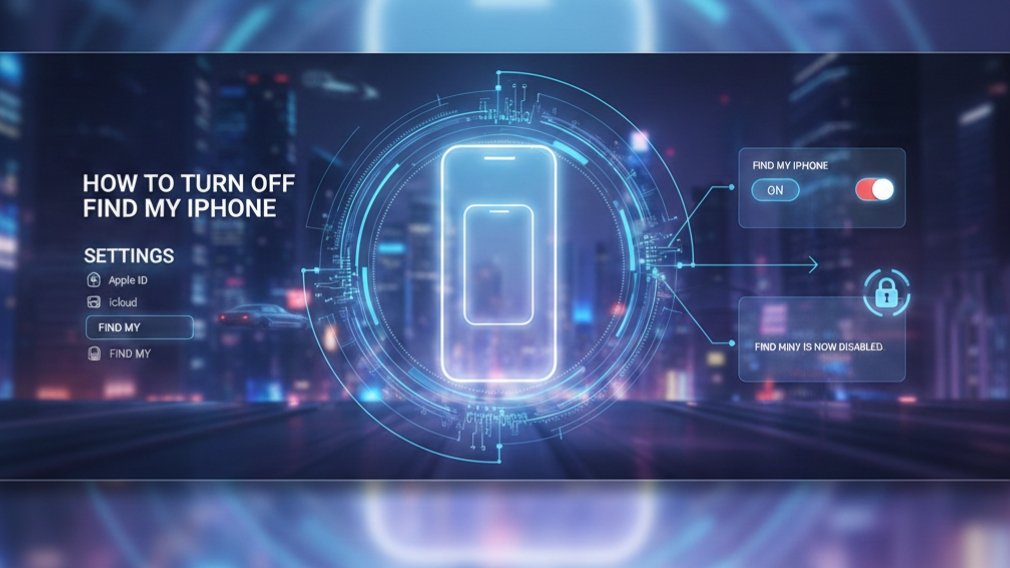
- Open the Settings app.
- Tap your Apple ID name displayed at the top of the screen.
- Select Find My from the Apple ID menu.
- Tap Find My iPhone.
- Toggle the switch to the off position.
- Enter your Apple ID password when asked.
- Confirm and allow the device a moment to update your settings.
Why This Method Is Preferred
This approach is simple and ensures the feature is turned off securely while you have the device in your hand. Users who want a smooth and quick way of completing tasks related to how to turn off find my iphone often rely on this method because it doesn’t require another device or computer.
How to Turn Off Find My iPhone Using iCloud
Sometimes your device may be inaccessible. You might have a broken screen, a device that won’t power on, or you may have already reset the phone before disabling Find My. In such cases, iCloud offers a reliable alternative.
Using iCloud to Remove Your Device
- Go to iCloud.com using any web browser.
- Sign in using your Apple ID credentials.
- Click on Find Devices from the main dashboard.
- Select the device you want to remove.
- Choose Erase iPhone if needed.
- After the erase process, select Remove from Account.
This removes your iPhone from your Apple ID and disables Find My, making it easy for someone else to set it up. Many users handling advanced cases of how to turn off find my iphone rely on this method because it works even when the device is not physically with them.
Common Errors and Issues When Turning Off Find My iPhone
Even though the steps are simple, you might run into errors. Knowing them in advance saves time and prevents confusion.
Incorrect Apple ID Password
If you enter the wrong password, the system will not let you turn off the feature. Resetting your password from Apple’s official website usually solves the issue quickly.
Device Not Connecting to Wi-Fi
Apple requires an active internet connection to update Find My settings. Connect to stable Wi-Fi or mobile data before attempting again.
Software Bugs or Pending Updates
Sometimes iOS glitches can interrupt the process. Restart your device or update it to the latest version before trying again.
These are common reasons why some users face difficulty while learning different methods for how to turn off find my iphone, especially when the device is older or running outdated software.
Important Things to Do Before Disabling Find My iPhone
Before you turn off this security feature, take a few precautionary steps to protect your personal information.
Back Up Your Data
Always back up your photos, contacts, files, and app data. You can choose between an iCloud backup or a computer backup through Finder/iTunes.
Sign Out of iCloud When Selling or Giving Away the Device
Disabling Find My alone does not completely remove your Apple ID. Make sure you sign out from iCloud entirely to avoid activation issues for the next user.
Use a Secure Internet Connection
Using public Wi-Fi during security-related actions can be risky. A private and secure connection keeps your data safe.
These steps ensure the entire process remains smooth and that you maintain control over your personal information.
FAQ’s
Q1: What happens when I turn off Find My iPhone?
Your device is no longer trackable, and Activation Lock is disabled.
Q2: Can Apple turn off Find My iPhone for me?
No, Apple cannot disable it without your login information due to privacy rules.
Q3: Can I turn it off without a password?
No, the Apple ID password is required for security.
Q4: Is turning off Find My iPhone safe?
Yes, but only do it when necessary because it reduces device security.
Q5: Do I need to turn it off before selling my phone?
Yes, it is required so the new owner can set up the device.
Conclusion:
Understanding how to turn off find my iphone ensures that your device transitions smoothly during repairs, upgrades, or ownership changes. Whether you disable the feature through device settings or iCloud, the steps are designed to protect your data while giving you full control over your device. By following the instructions, avoiding common mistakes, and taking proper precautions, you can complete the process confidently and securely.